How to delete a page in Google Docs - Android Police
Most of us use Google Docs to write reports, collaborate on documents, and edit text. The word processor works on most platforms, whether you use a smartphone, desktop PC, laptop, or one of the best budget Chromebooks. As you type, Docs automatically adds new pages. You might need to delete a page or two if you make a few mistakes. This guide shows you how to delete blank pages in Google Docs.

How to create an outline in Google Docs
Use the outline feature to quickly navigate through documents
How do you delete a page in Docs?
The fastest way to delete one or multiple pages in Docs is to highlight the text and press the Backspace or Delete key on your keyboard. If the page doesn't contain text and you can't delete it, there might be a hidden page break. Page breaks are lines you insert into a document to end a page without filling it with text so you can start a new page.
You can also delete a page in Docs by adjusting the line spacing and margins. Line spacing is the vertical room between lines of text. You can't erase it with the Backspace button. You have to adjust it from the Format menu. The margin is the space between blocks of text and the edges or sides of the document.
You can perform the above procedures on the mobile and web versions of Docs. The web version has all the features you need for proper editing. The mobile app has limited capabilities.
Google Docs is accessible via computers and smartphones. Deleting pages on your computer gives you a wider screen and more features. The procedures may look different on your device, depending on the OS it runs.
How to delete pages in Google Docs via highlighting text
You don't see line breaks when using Docs in Pageless mode, making it confusing to tell where pages start or end. You can switch to the Pages view to see them better.
Delete pages in Google Docs in the browser
- If Docs is in Pageless mode, go to File and select Page setup.
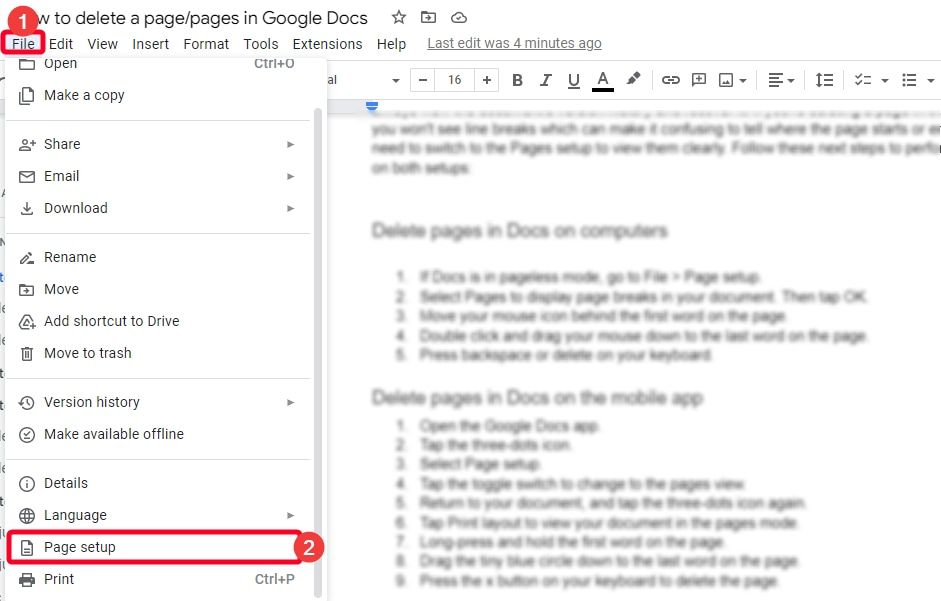
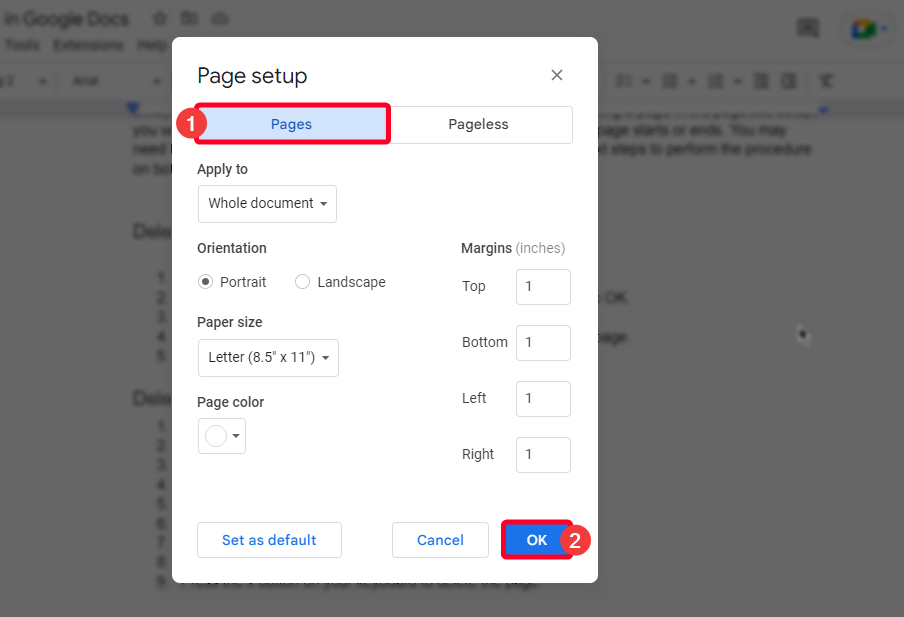
- Select Pages to display page breaks in your document, then tap OK.
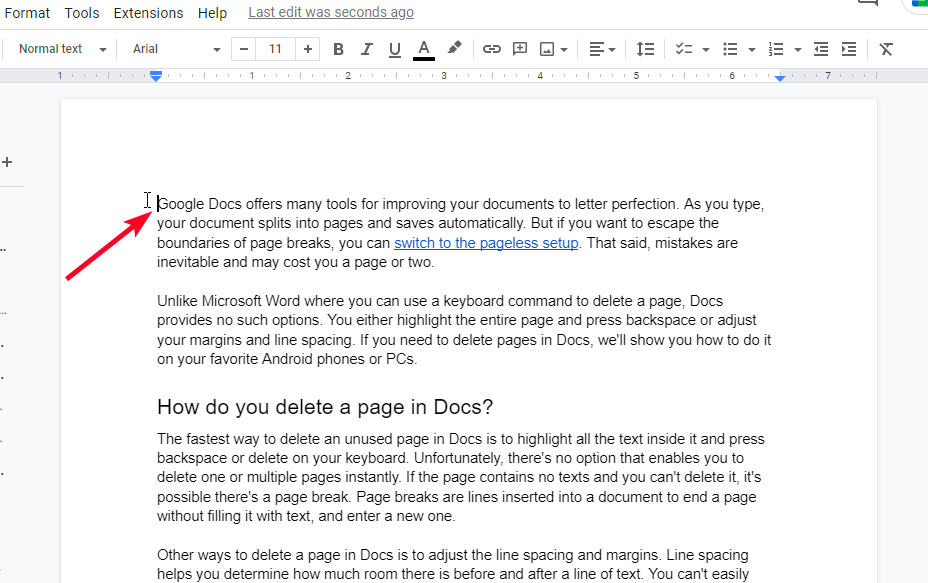
- Move the mouse cursor in front of the first word on the page.
- Click and drag your mouse to the final word on the page. Extend the highlight to the last word on the next page to delete multiple pages.
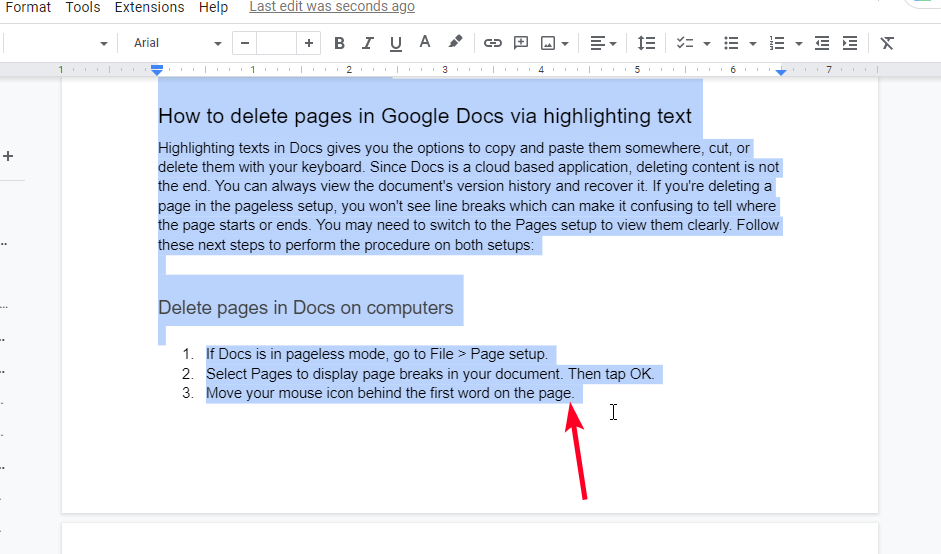
- Press Backspace or Delete on your keyboard.
Delete pages in Google Docs on the mobile app for Android or iOS
- Open a document in the Google Docs app.
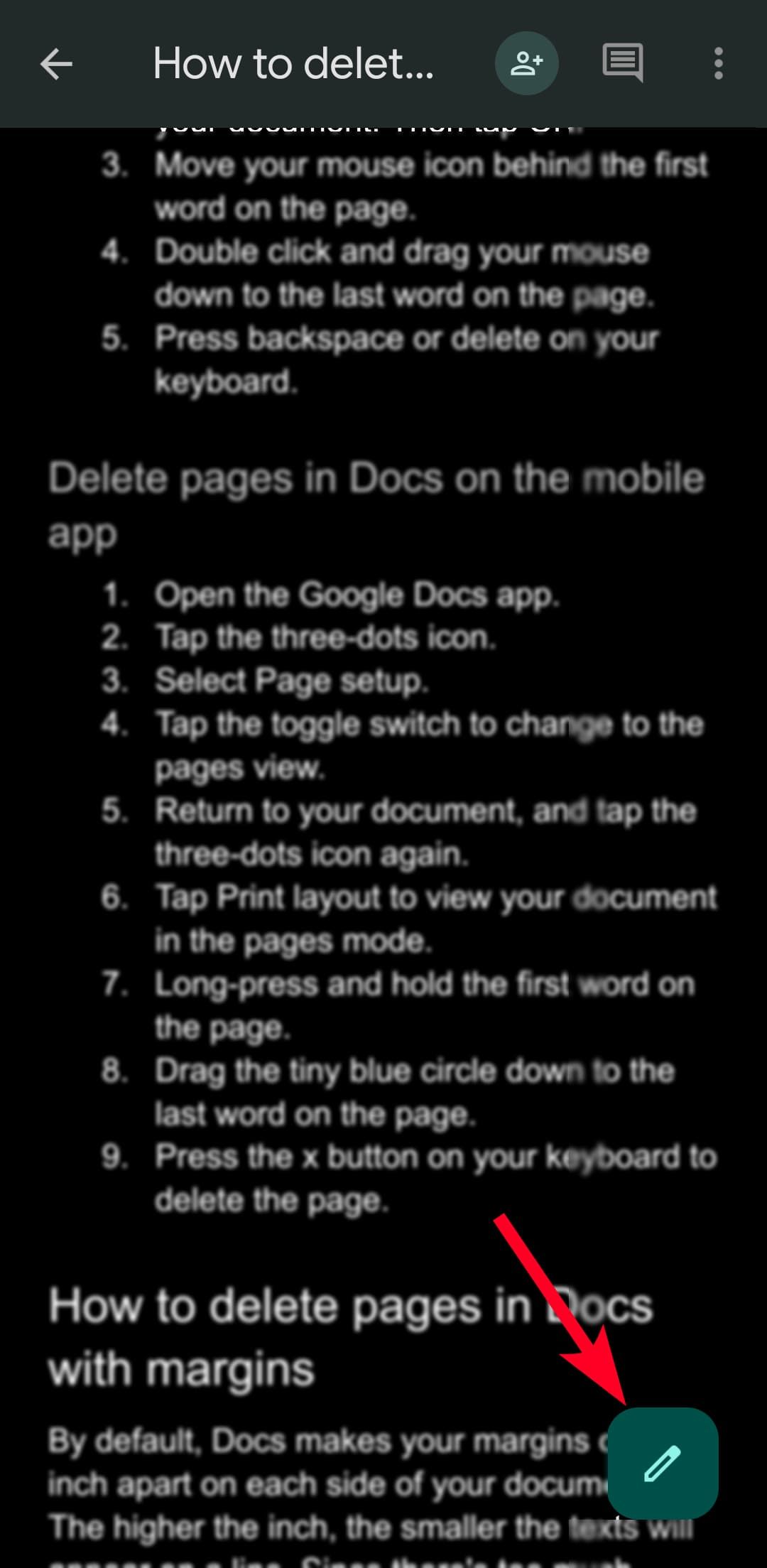
- Tap the pen icon to enter editing mode.
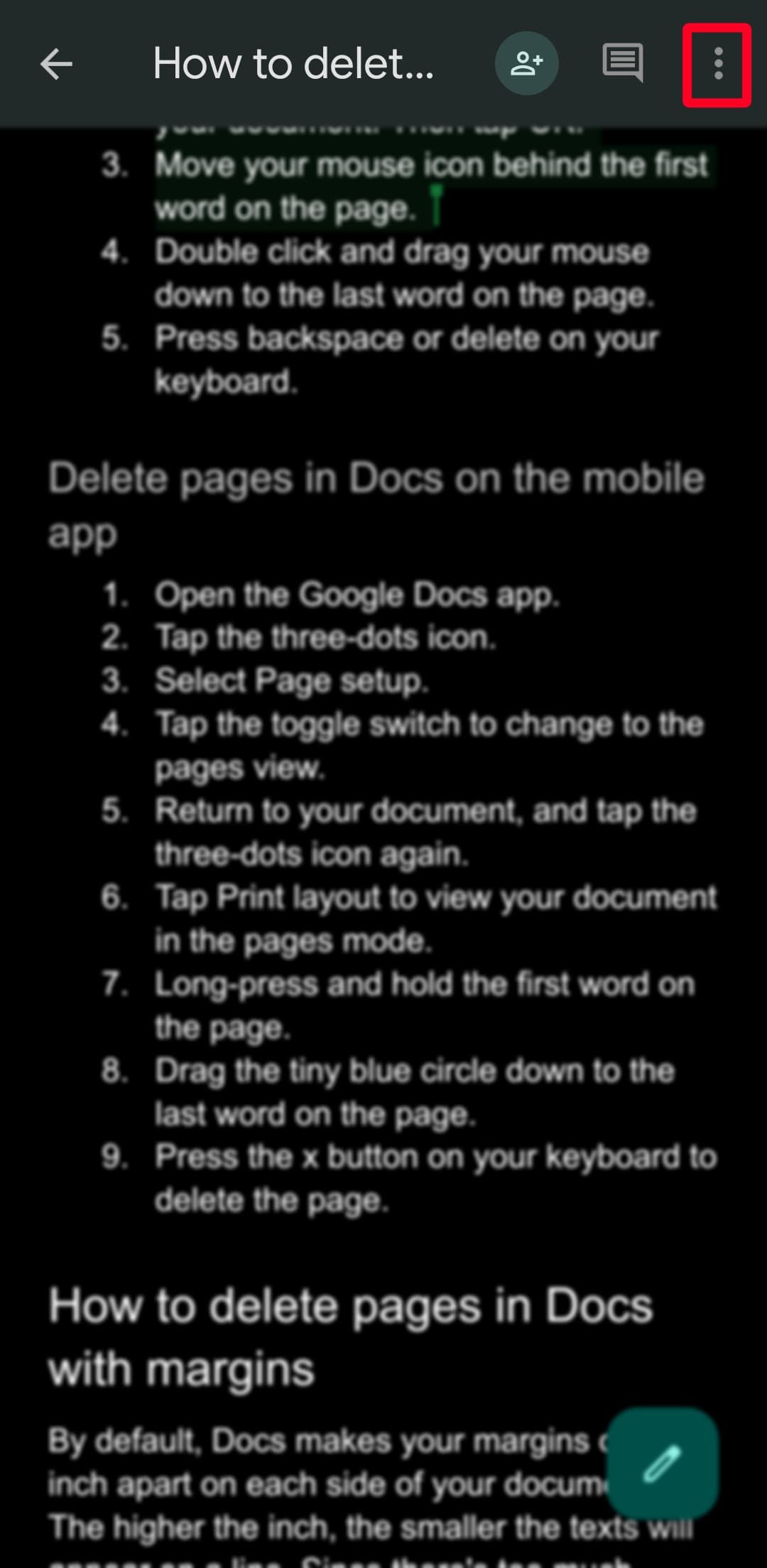
- Tap the three-dot icon.
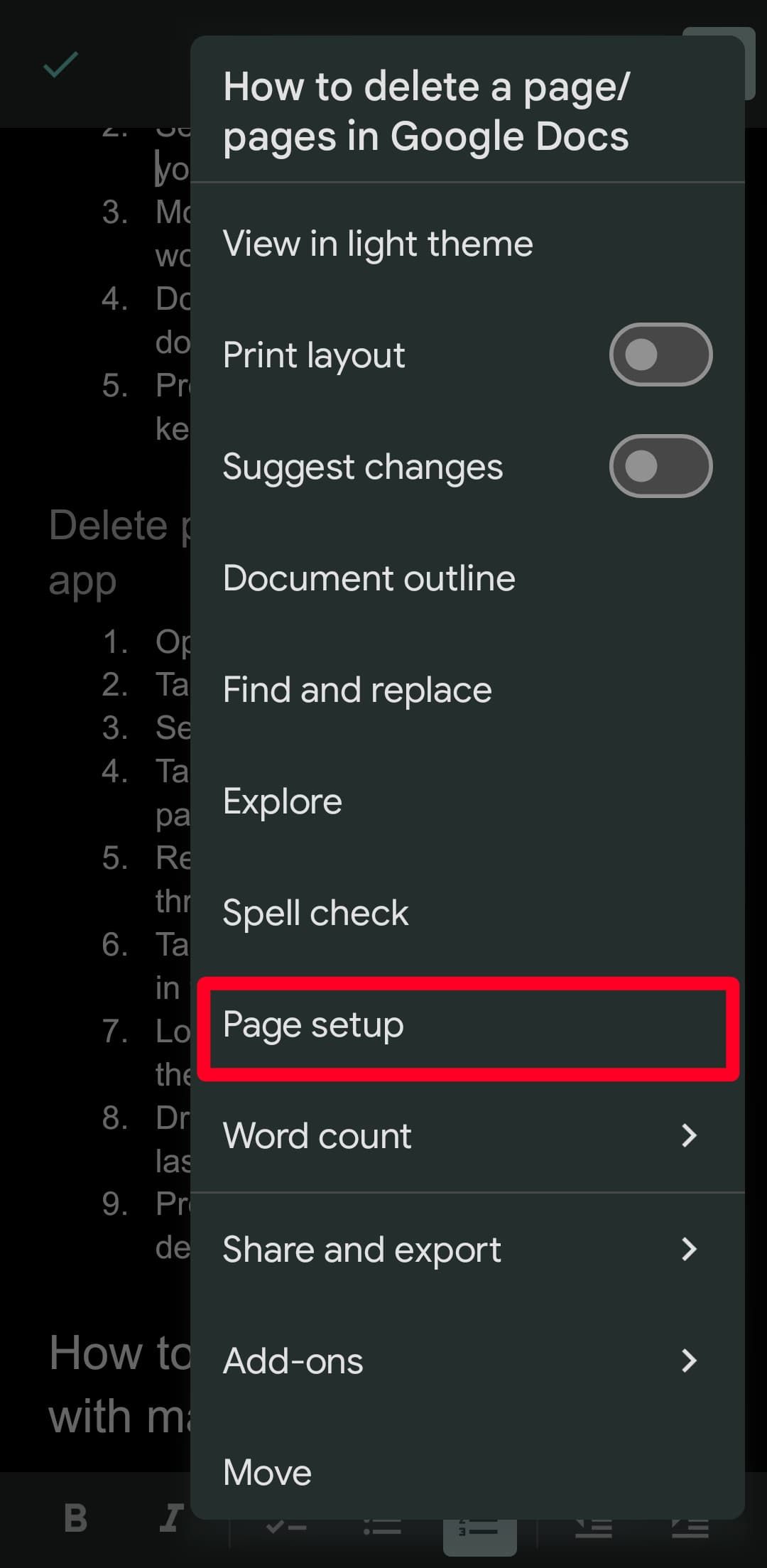
- Select Page setup.
- Tap the toggle switch to change to the Pages view.
 [unable to retrieve full-text content] America's most conservative states are embracing medical pot Politico
"latest google news today" - Google News
[unable to retrieve full-text content] California is cutting support for local news. Now Google is, too CalMatters"google stock price today" - Google News
[unable to retrieve full-text content] Why Alphabet Stock Is Sinking Today The Motley Fool